How to Remove the Background From Product Photos (Fast, No Photoshop)
A messy background is the fastest way to make a good product look cheap. If you want listings that look like they belong on a real store page, you usually need to remove the background from product photos first — and then put the item somewhere clean. The good news is you no longer need Photoshop, a plugin, or an hour of manual masking to do it. This guide covers the practical ways to get it done, plus how to skip the two-step "cut out, then re-stage" process entirely.
Why removing the background matters
Background clutter competes with your product for attention. On a marketplace, it also breaks the rules — most platforms want a pure white main image, and a busy or off-white background can get a listing suppressed or just quietly ignored by shoppers scanning a grid.
Removing the background does three things at once:
- Makes the product the clear focus, with no distractions.
- Meets marketplace image standards for the main listing photo.
- Gives you a clean base you can drop onto white, marble, or a lifestyle scene.
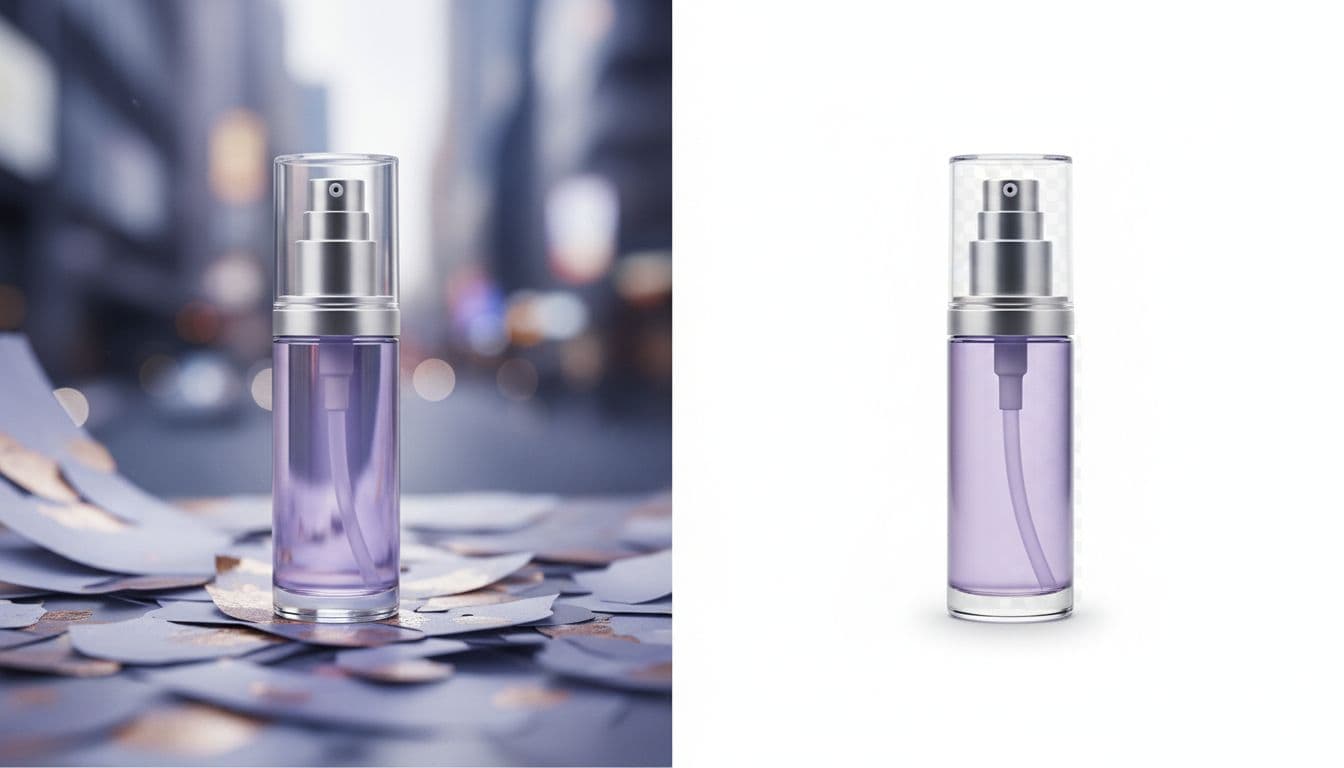
The catch is that "remove the background" is only half the job. A product floating on transparent pixels still needs a real backdrop before it looks finished.
The manual ways to remove the background from product photos
There are a few traditional routes, and each has a trade-off:
- Photoshop / GIMP: the most control, the steepest learning curve. Pen-tool masking around soft edges, hair, or glass is slow and easy to botch.
- One-click background removers: fast, but they hand you a transparent PNG, not a finished photo. You still have to composite the product onto a new background and match the lighting. (If you are weighing tools like Photoroom, the Photoroom alternative comparison covers this difference.)
- Phone apps: convenient, but edges often look cut-out and fake, especially on shadows and reflective surfaces.
All of these treat background removal as a standalone task. You end up with a floating product and a second problem: where do you put it, and how do you make the light look natural?
A faster approach: re-stage instead of cut out
Instead of erasing the background and then hunting for a new one, you can re-stage the product directly. That is what the AI Product Photo Studio is built for. You upload one photo, and it is instructed to keep your item's shape, colors, label, logo, and text while replacing everything around it with a clean, professionally lit scene. No manual masking, no compositing, no mismatched shadows.
Because the background and the lighting are generated together, the result looks like a real photo shoot rather than a cut-and-paste job. You pick the scene:
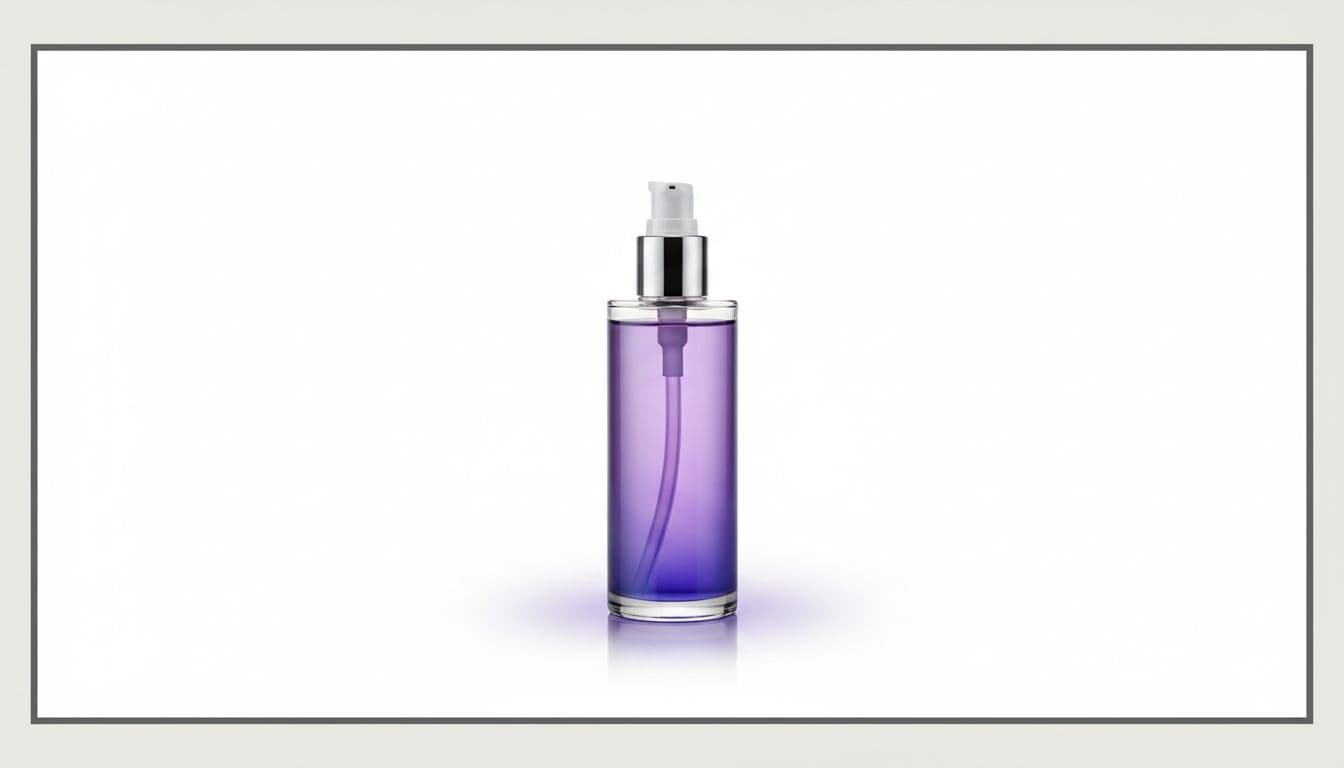
- Pure white for your main marketplace image.
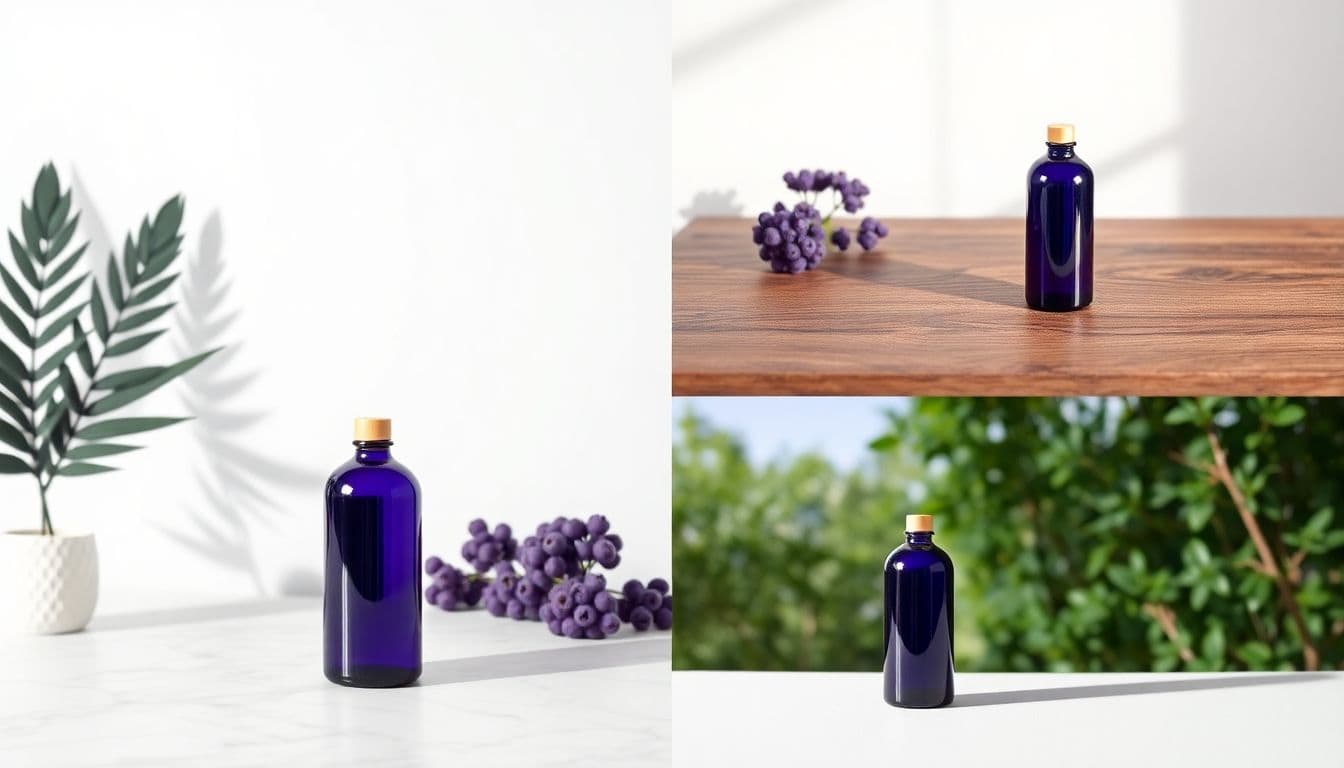
- Studio gradient, marble, or wood tabletop for a premium feel.
- Lifestyle (kitchen counter, vanity, botanical) so shoppers can picture the item in use.
Each finished photo costs 3 credits with pay-as-you-go pricing — one-time packs start at $5, a subscription is not required, and credits never expire.
Which background should you actually use?
Match the background to where the image will live. A quick rule:
- Main listing photo: always go clean white. This is the marketplace standard, and dedicated white-background product photos are the safest choice for search grids and category pages.
- Secondary images: add one or two lifestyle scenes to give context and scale.
- Ads and social: a styled or lifestyle background tends to stop the scroll better than plain white.
If you sell on Amazon specifically, the main image rules are strict about pure white and how much of the frame the product fills. It's worth reviewing the Amazon product image requirements before you finalize anything, so a technically-good photo doesn't get rejected on a detail.
Don't forget size and aspect ratio
Removing the background is only useful if the final file fits where it's going. A square crop that's perfect for Amazon will look wrong as a vertical TikTok image. Before you export a batch, check the right product photo sizes and aspect ratios for each platform so you're not re-cropping later. Generating the image at the correct ratio from the start saves a round of edits.
A simple, repeatable workflow
Here's a workflow that gets you clean, on-brand images without touching a masking tool:
- Shoot one clear source photo. Good light, product centered, label readable. Your phone is fine.
- Upload and re-stage. Let the tool remove the original background and place the item on a clean scene in one step.
- Generate a white version for the main image, plus a lifestyle version or two for supporting shots.
- Match each export to the platform's size and ratio.
- Reuse the same product across scenes so your listing looks consistent.
If you want a deeper walkthrough of the whole process, the guide on professional AI product photography covers scene selection and lighting in more detail.
The takeaway: you don't need to separate "remove background" from "make it look good." Re-staging the product in one pass gives you a clean cut-out and a finished, believable photo — which is what actually sells.
Remove the background and re-stage in one step
Upload one product photo and get a clean white or lifestyle scene built from your real item. 3 credits per photo, no subscription required.
Try the Product Photo Studio