AI Avatar Video Generator: How to Make a Talking Video from One Photo
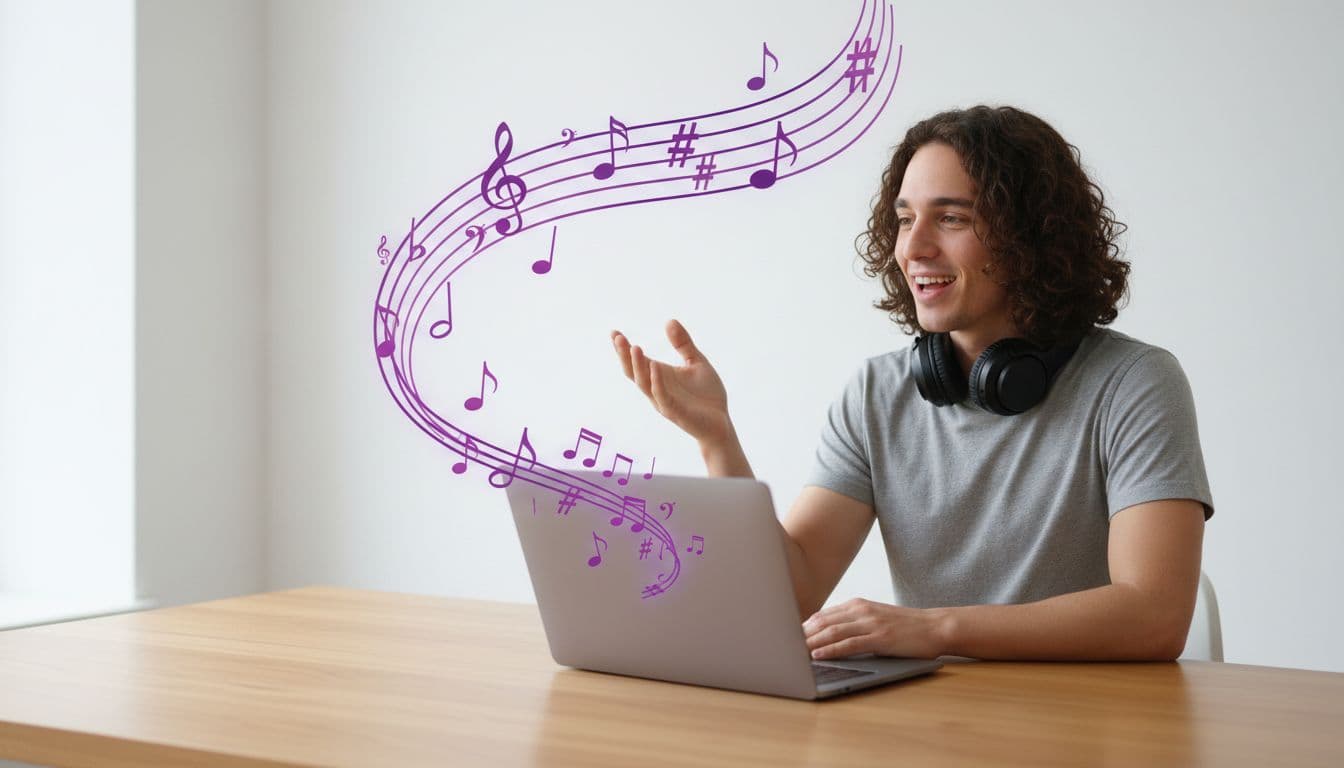
Recording a presenter on camera used to mean booking talent, lighting a set, and editing the takes. An AI avatar video generator collapses all of that into two inputs: a single portrait photo and a script. Upload the face, type what it should say, pick a voice, and you get back a short talking video with accurate lip sync — no camera, no studio, no editor.
This guide walks through the whole flow using the TalkPix talking-photo studio, from choosing a photo to rendering the clip, plus the real costs and where this tool fits (and where it doesn't).
What an AI avatar video generator actually does
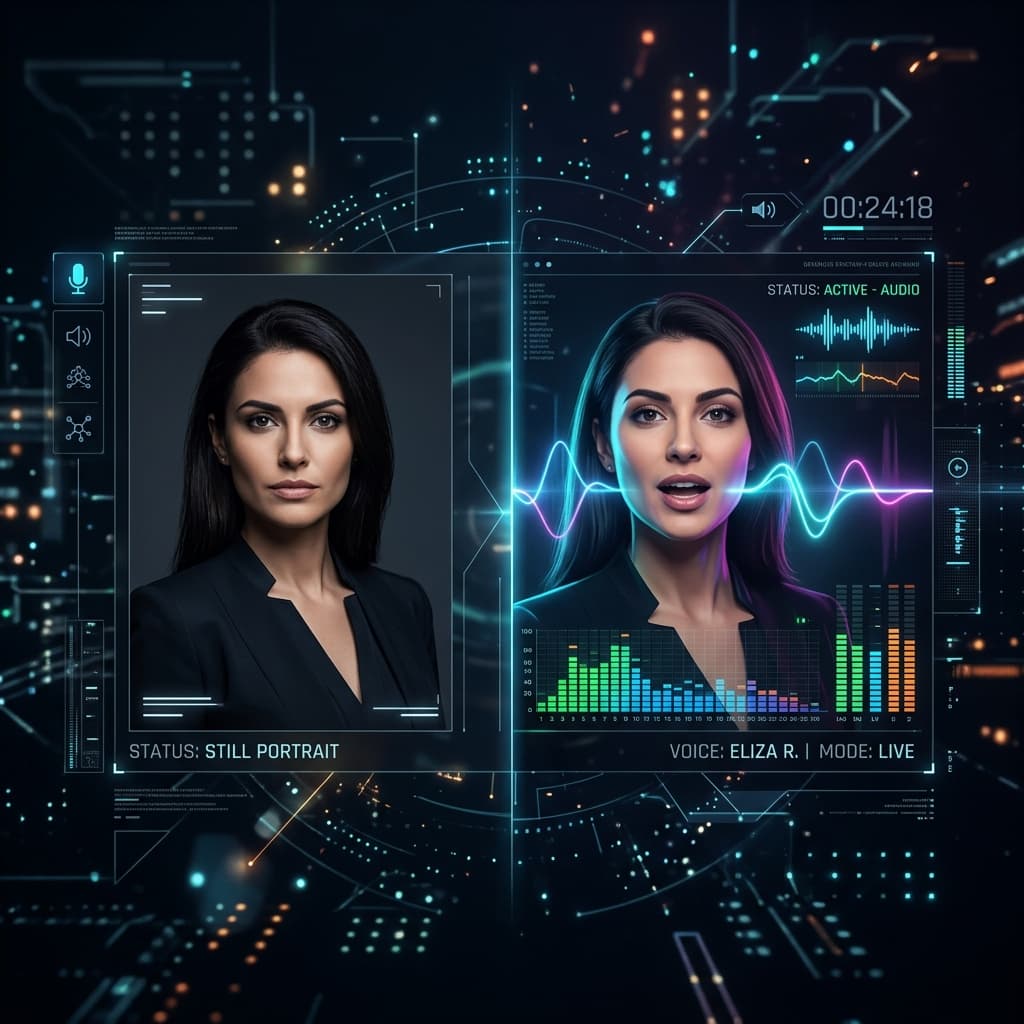
The core trick is simple to describe and hard to fake well: it animates a still portrait so the face speaks your words, matching lip movements to the audio. You supply the voice one of two ways:
- AI voice — type a script and pick from a library of natural-sounding voices across 10 languages.
- Your own audio — upload a recording and the tool lip-syncs the photo to it.
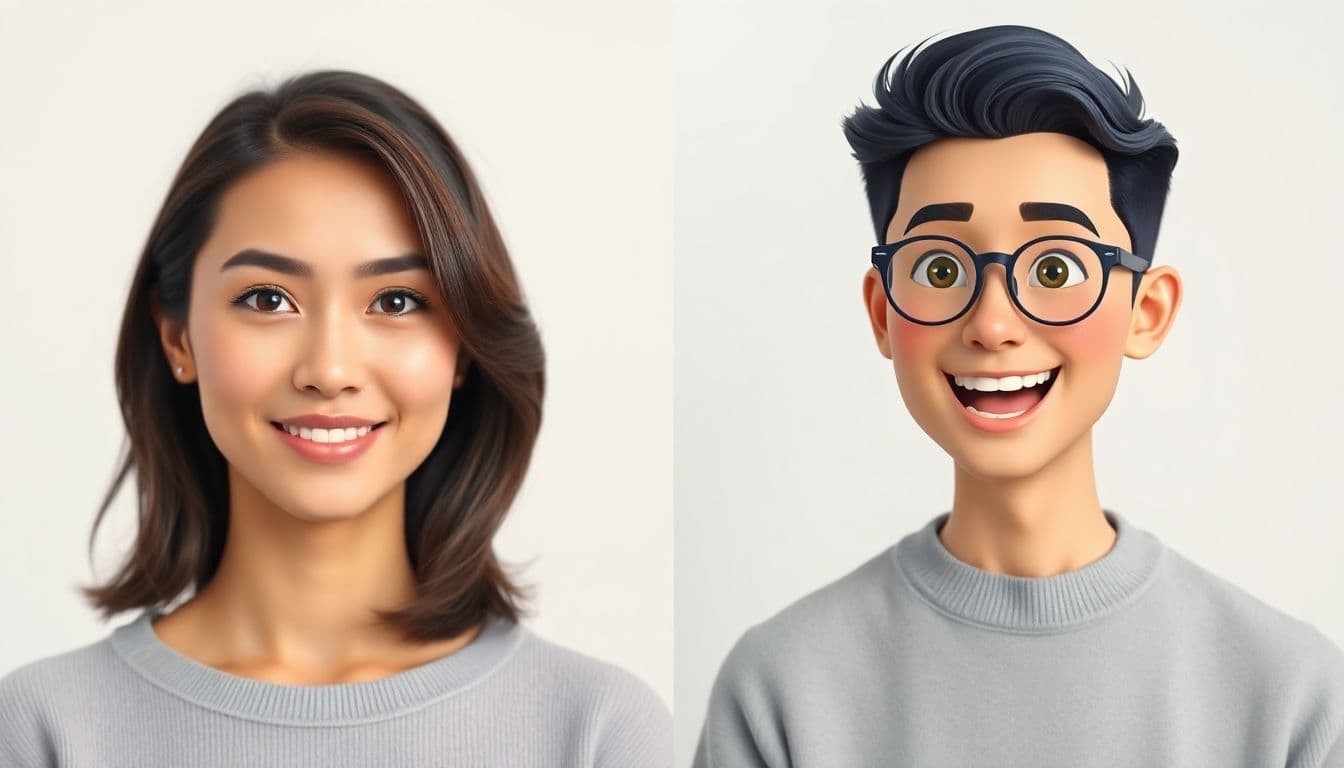
The output is a lifelike talking-avatar video you can drop into ads, training and onboarding flows, course intros, or personal greetings. Because it starts from one real photo, the person on screen stays recognizable — the same face, every time.
Step 1 — Pick a photo the generator can work with
Photo quality is the biggest lever on the final result. Aim for:
- One face, front-facing. Group shots and steep side angles confuse the animation.
- Even lighting. Harsh shadows across half the face hurt lip sync.
- Decent resolution. A crisp headshot beats a zoomed-in crop from a group photo.
- Neutral, relaxed expression. A closed or slightly parted mouth animates more cleanly than a wide grin.
You can use a real headshot, a product mascot, or even a restored old portrait — the same rules apply.
Step 2 — Write the script (or bring your own audio)
Write for the ear, not the page. Short sentences, one idea each, and a natural spoken rhythm read far better than dense marketing copy. A few practical tips:
- Read your draft out loud first; if you stumble, the avatar will too.
- Spell out anything ambiguous — "twenty twenty-six" instead of "2026".
- Keep a single clip to one message. Multiple points? Render multiple clips.
If you already have professionally recorded audio, skip the AI voice entirely and let the generator lip-sync the photo to your recording.
Step 3 — Choose a voice and language
This is where a good AI avatar generator earns its keep. TalkPix offers voices in 10 languages with male and female options, so you can match the tone to your brand — calm and authoritative, warm and friendly, or upbeat for social.
Making the same message for several markets? The multilingual avatar workflow lets one photo speak English, Spanish, and eight more languages, keeping the same recognizable face across every version. That consistency is hard to get any other way.
Step 4 — Render your clip
TalkPix uses one-time credit packs starting at $5. The Mini pack includes 50 credits, and a 10-second 720p Talking Photo video uses about $1 in credits. Payment is required before generation; a subscription is not required, and credits never expire.
Turn a photo into a talking video
Credit packs start at $5, a 10-second 720p video uses about $1 in credits, and a subscription is not required.
Create an AI avatar videoWhat it actually costs
no subscription required, no monthly minimum. TalkPix runs on pay-as-you-go credit packs that start at $5, and credits never expire. Pricing is per second of output — so a short 20-second explainer is a small, predictable spend, and you only pay for the clips you actually render. Commercial use is included, so the videos are yours to run as ads or on product pages.
Getting better results without wasting credits
- Start short. Because you pay per second, a 10-second test render is the cheapest way to catch a bad voice match or an off photo.
- Change one thing at a time. Swap the voice, then the photo, then the script — so you know what improved the clip.
- Batch your languages. Lock a script and photo you like, then reuse them across language versions for a consistent presenter.
Avatar video vs. text-to-video — which do you need?
An AI avatar video generator is the right tool when your video is a person delivering lines to camera — a spokesperson, a host, a greeting. If instead you need an invented scene with no source photo — a product rotating on a pedestal, a drone flyover, an atmospheric shot — that's a job for a text-to-video generator instead, which builds the footage from a prompt.
For a deeper look at the spokesperson use case specifically — scripting, framing, and where it shines — see our guide to making an AI spokesperson video.
Ready to make one?
You need exactly two things: a clear portrait and something to say. Everything else — the voice, the lip sync, the render — the generator handles. Start with your photo →