How to Lip Sync a Photo to Your Voice with AI
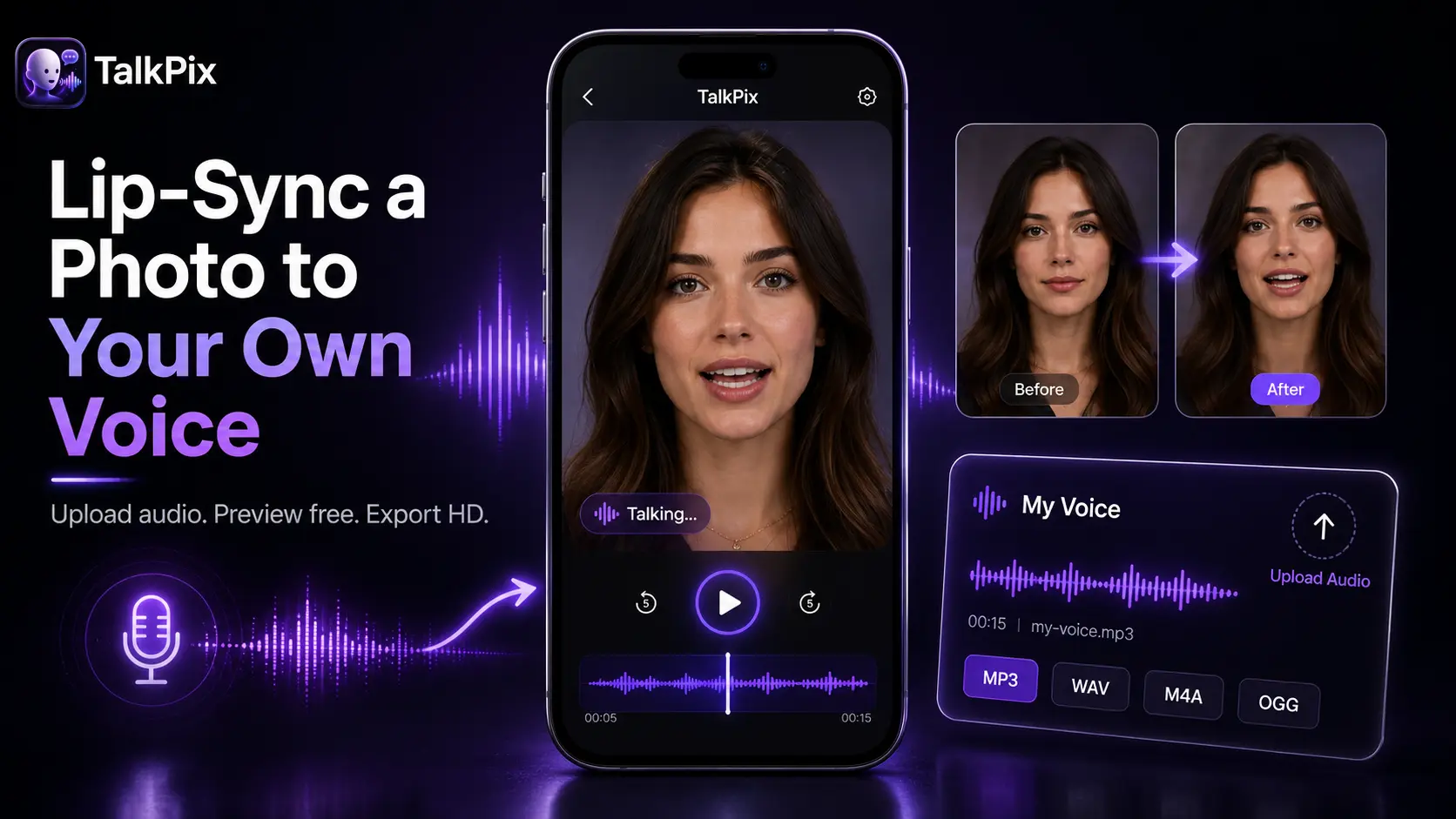
There are two ways to lip-sync a photo: let an AI voice read your script, or upload your own audio and have the portrait match it. The AI route is fastest, but using your real voice makes the result unmistakably yours — your tone, your accent, your delivery. This guide covers how to lip-sync a photo to your own recording.
Here's the kind of result lip-sync produces:
New to talking photos? The how to make a photo talk guide covers the basics; this one focuses on syncing to real audio.
When to lip-sync a photo to your own voice
- Personal messages — a birthday wish or a talking photo message where your actual voice matters.
- Narration — put a face to a voiceover for an explainer or tutorial.
- Authenticity — creator content where viewers expect a real person.
If you don't have audio handy, an AI voice works great too — and you can even have the same photo speak multiple languages.
Step 1 — Pick a clean portrait
Same rule as always: front-facing, well-lit, whole face visible, one subject — the same photo rules as any talking portrait.
Step 2 — Switch to "My voice" and upload audio
Choose the upload-audio option and add your clip. A few things that keep the sync tight:
- Supported formats: MP3, WAV, M4A, OGG, up to 25 MB.
- Record in a quiet room — background noise muddies the mouth movement.
- Speak at a natural pace; very fast speech is harder to track cleanly.
- Mono, clear audio beats a loud, over-processed file.
Step 3 — Generate and review
The portrait is animated to match your audio's timing — mouth, jaw, and subtle movement. Clean audio and a front-facing photo do most of the work here, so check both on the setup screen before you render the full clip.
Step 4 — Download your video
You get an HD MP4. Because 1 credit = 1 second of Talking Photo video at 720p, you only pay for the length you actually create, and credits never expire.
Put your own voice on a photo
Create your full video with one-time credit packs from $5 — a 10-second video is about $1. Payment is required before generation.
Try photo lip-syncTips for the most natural sync
- Trim silence from the start and end of your audio.
- One speaker per clip — overlapping voices confuse the lip-sync.
- If a take feels off, re-record the audio rather than the photo; the audio drives the motion.
Frequently asked
What audio formats work? MP3, WAV, M4A, and OGG up to 25 MB.
Can I use an AI voice instead? Yes — type a script and pick from the available voices.
TalkPix uses one-time credit packs starting at $5. The Mini pack includes 50 credits, and a 10-second 720p Talking Photo video uses about $1 in credits. Payment is required before generation; a subscription is not required, and credits never expire.
Where people take this next
The own-audio engine powers a few popular workflows:
- Turn podcast clips into talking videos — your real episode audio, delivered by the host's photo.
- Animate an old photo with a real family recording.
- Upload a vocal clip instead of speech and turn the picture into a singing photo.
- Prefer AI voices in other languages? See multilingual avatar videos.
Want to try it with your own recording? Lip-sync your photo → or open the editor.