How to Make a Talking Photo on Android
Android has no built-in tool that makes a still photo speak, but a browser tab is enough. This guide shows the whole process on an Android phone, from choosing the picture in your gallery to sending the finished video on WhatsApp, with the settings that matter on a small screen.
To make a talking photo on Android, open the TalkPix create page in Chrome, tap Upload and choose a clear, front-facing photo from your gallery, then type a script or record your voice. Tap Generate, wait for the render, and download the MP4 to your phone. You can also use the TalkPix app from Google Play.
Browser or app: two ways to do it on Android
The quickest route is the browser. TalkPix is a web app, so on Android you only need Chrome (Samsung Internet and Firefox work too). Nothing takes up storage, and you can switch to a computer later with the same account.
If you prefer an icon on your home screen, there are two options. In Chrome, open the menu and choose Add to Home screen to pin the site like an app. Or install the TalkPix app from Google Play, which is sold through Google Play with its own in-app purchases. This guide follows the browser route. Our talking photo app page compares the web studio and the apps.
What you need
- An Android phone with an up-to-date version of Chrome
- One sharp, front-facing photo in Google Photos, your Gallery app or your Files
- A short script to type, or a quiet room to record your own voice
- Credits in your TalkPix account (packs start at $5, details below)
Make a talking photo on Android in 5 steps
1. Open the create page in Chrome
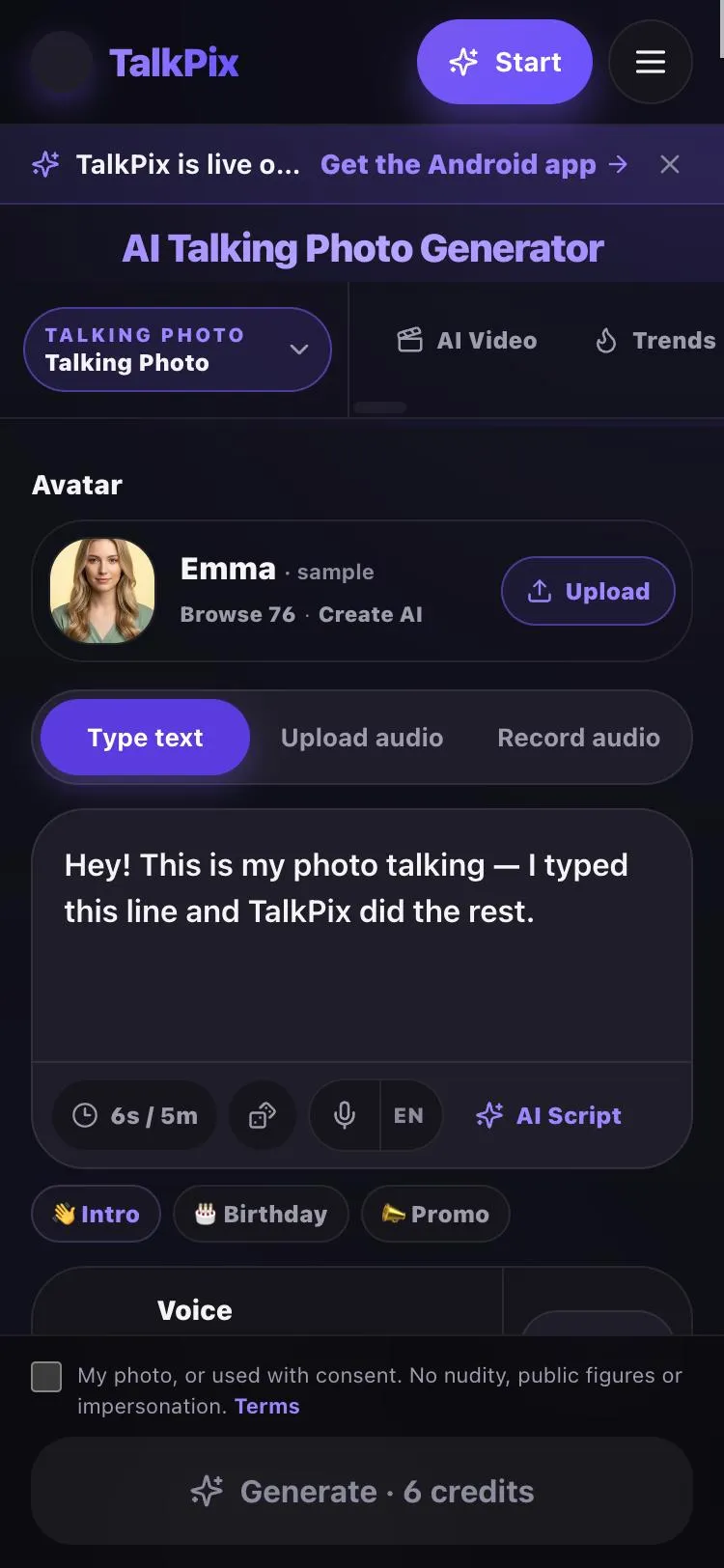
Go to talkpix.ai/create and sign in. The studio opens on Talking Photo, with a sample avatar already selected so you can see how the page is laid out. On a phone, the whole form is one column: the photo at the top, then the script or audio, the voice, and the Generate button at the bottom.
2. Upload a photo from your gallery
Tap Upload in the Avatar row. Android opens its photo picker, where you can choose from recent photos or browse albums in Google Photos. Pick a picture where the face is sharp, evenly lit and looking roughly at the camera. A face that fills a good part of the frame animates best.
If a photo you want lives only in Google Photos' cloud backup, the picker may need a moment to download it. If the picker does not show a picture you saved from WhatsApp or another app, tap Browse in the picker and look in the Pictures or Download folder. Our best photo for a talking avatar guide has a short checklist if you are choosing between a few shots.
3. Add the words: type, upload or record
Below the photo there are three tabs:
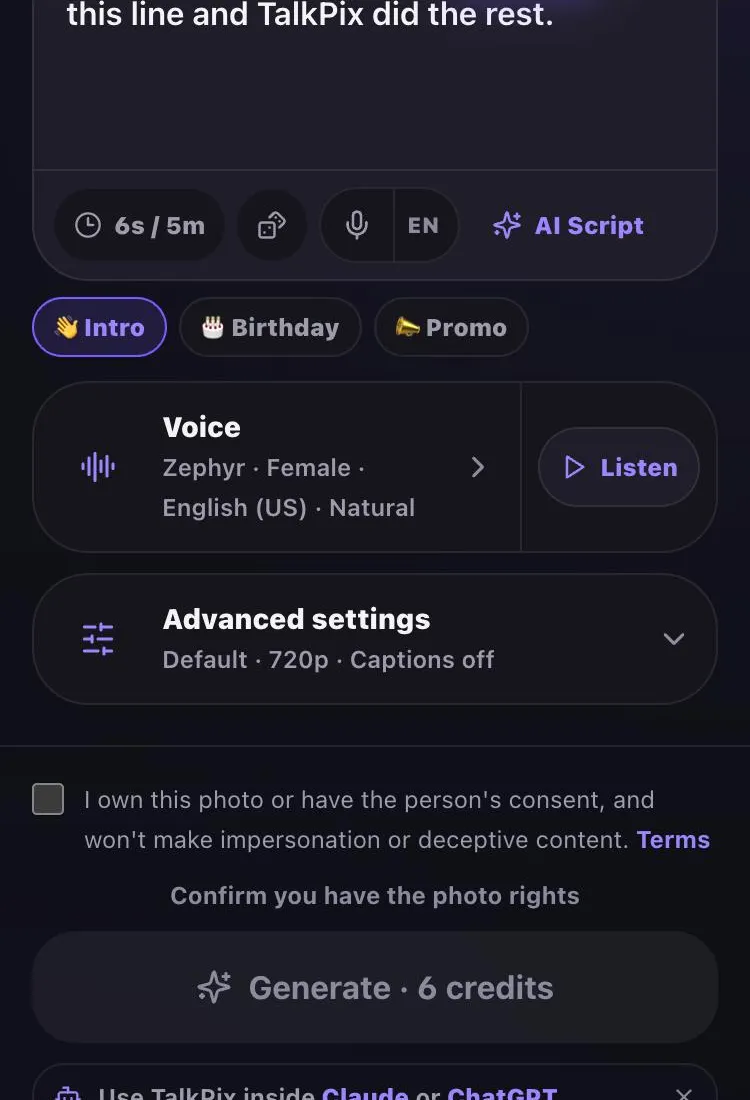
- Type text. Write what the photo should say. The counter under the box shows the length so far against the 5-minute limit, and AI Script can draft a line for you. The Intro, Birthday and Promo chips fill in an example you can edit.
- Upload audio. Choose a recording that is already on your phone. MP3, WAV, M4A, AAC, OGG, WebM and FLAC files work, so a clip from a voice recorder app is fine.
- Record audio. Record your voice straight into the page. Chrome asks for microphone permission the first time; tap Allow.
With typed text, open the Voice row to pick a voice and press Listen to hear it before you spend anything. There are 30 AI voices across 10 languages. With your own audio, the photo lip-syncs to your recording, so it sounds like you. Record in a quiet room and keep one speaker per clip.
4. Check Advanced settings
Advanced settings shows the motion style, the resolution and captions. The default is 720p with captions off, which suits most phone videos. 720p allows up to 5 minutes. 1080p allows up to 2 minutes and uses twice the credits per second, so keep it for clips you plan to show on a large screen.
5. Confirm, generate and save the video
Tick the box confirming that you own the photo or have the person's consent. The Generate button shows the credit cost before you tap it, based on the length of your script or audio. Rendering takes a little while. You can keep the tab open, or come back later and find the video under Creations.
When the video is ready, tap Download to save the MP4. On most Android phones, Chrome puts it in the Download folder, which you can open in the Files app; Google Photos usually lists it under its device folders as well. From there you can share the file to WhatsApp, Instagram or Telegram like any other video. The Share button on the result page sends a link to the video instead of the file, which is handy when the recipient is on a computer.
Make one on your Android phone
Credit packs start at $5, a 10-second 720p video uses about $1 in credits, and a subscription is not required.
Make a talking photoWhat it costs
TalkPix uses one-time credit packs, starting with the Mini pack: 50 credits for $5. Talking Photo uses 1 credit per second at 720p and 2 per second at 1080p, so a 10-second 720p video costs about $1 in credits. You pay before generating, a subscription is not required, and credits do not expire. Purchases inside the Google Play app are priced separately. The full table is on the pricing page.
Tips for better results on Android
- Turn off beauty filters before you take a new selfie. Many Android camera apps smooth skin and reshape faces by default. A natural photo animates more convincingly.
- Use the main camera for a fresh portrait. The rear camera is usually sharper than the front one. Ask someone to take the photo at eye level, in daylight from a window.
- Silence notifications before recording. Turn on Do Not Disturb so a message sound does not land in the middle of your audio.
- Hold the phone 20–30 cm from your mouth. Closer gives breath noise and pops; farther picks up the room.
- Keep the first video short. One or two sentences is enough to check the voice and the look. You can write a longer script once you like the result.
- Watch your data. Videos are a few megabytes, but if you are on mobile data, download the finished MP4 on Wi-Fi.
Common mistakes
- Choosing a group photo. The studio animates one face. Crop the picture around one person first with the Google Photos editor.
- Using a screenshot of a photo. Screenshots are low resolution and often include interface bars. Use the original file instead.
- Recording in a car or near a TV. Background noise carries into the lip-sync and makes the mouth move during gaps.
- Leaving the tab during upload. Wait for the photo to finish uploading before you switch apps, or Android may pause the page.
Can Android make a photo talk without an extra tool?
No. Android and Google Photos can animate pictures in other ways, such as cinematic photos that add a slight camera movement, but none of them make a face speak new words. For that you need an AI talking photo tool, and on Android that can simply be a browser tab.
Where does the downloaded video go on Android?
Chrome saves downloads to the Download folder on your phone's storage. Open the Files app (or Files by Google) and tap Downloads to find it. Google Photos usually shows the same video under its device folders, so you can share it from there too.
Can I use a WhatsApp voice note as the audio?
Often yes. WhatsApp keeps voice notes in its own media folder, which the file picker may not show. The simplest route is to long-press the voice note in WhatsApp, use the Share option to save it to Files or send it to yourself, then choose that copy with Upload audio. Make sure only one person is speaking in the clip.
Does the TalkPix Android app work the same way?
The steps are the same: choose a photo, add text or audio, and generate. The app is sold through Google Play, so its purchases and prices are handled there and can differ from the website's credit packs. If you just want to try one video, the browser is the quickest start because there is nothing to install.
Next steps
Once your first video works, try a short message for a birthday or a hello to family instead of a plain text. If something looks off, such as a blurry mouth or speech out of sync, our lip sync troubleshooting guide walks through the fixes. Everything starts from the same create page in Chrome.